Changing Your Password
If you would like to change your password, you may do so by navigating to Edit -> Change Password.
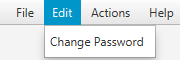
Upon choosing the option, the following dialog box will open:
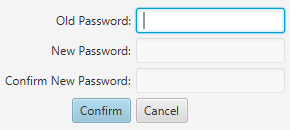
After specifying your current password in the Old Password text field and pressing Enter on your keyboard, assuming it's correct, The New Password and Confirm New Password text fields will open up and allow you to create a new password. After entering the same password in both of those two boxes and clicking on the Confirm button, your password will be updated.
If you are ever locked out of your account and need your password reset, contact an administrator to have them reset your password.