View Inventory
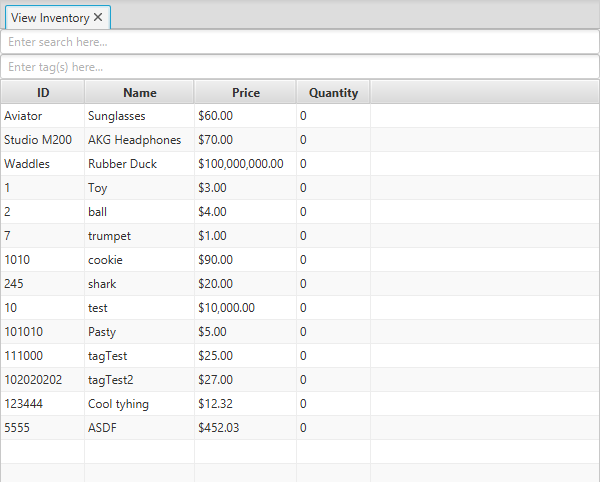
The View Inventory view will display all of the current inventory in a single, sortable table.
The table currently has the following four columns:
- ID: A unique product ID that can be used to reference this certain product.
- Name: A human-friendly name for the product.
- Price: The unit price for the product.
- Quantity: The current quantity on-hand for that product.
The table will automatically resize its columns so all of its elements are completely visible. Due to the way this works, however, you may have to resize your screen to see everything. It is recommended to use this program in maximized mode in order to avoid problems like this one.
Each column of the table can be sorted for convenience. Clicking once on any column will sort the column in ascending order, and clicking it again will sort the column in descending order.
There is a search bar at the top of the view to help find items within the inventory. Currently, the table can be filtered based on ID and Name.
As of right now, the Tag Filtering bar below the Search bar does not work.
No data can be changed from this view. To add new products, visit Create New Products. To add quantity, visit Update Products. To sell inventory, visit Sell Inventory.