Admin
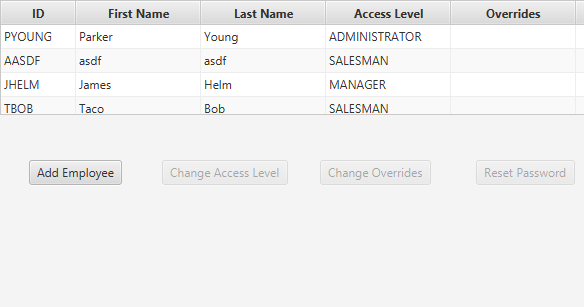
The Admin view allows administrators to perform some tasks on employees.
In order to use the buttons that come disabled by default, select an employee from the table of employees.
Adding Employees
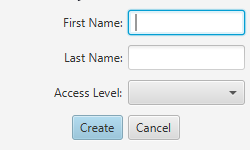
In order to add a new employee to the system, three things need to be specified:
- First Name: The first name of the employee.
- Last Name: The last name of the employee.
- Access Level: The access level the employee will have.
Upon specifying that information and clicking on the Create button, the employee will be created.
The default password for the employee will be the full last name of the employee, the first three letters of their first name, and the number one. All letters are in lowercase. So, for example, for an employee named Thomas Example, their default password would be exampletho1. The employee will have access to change their password as specified in this help page. If the password needs to be reset, please see the Reset Password section below.
Change Access Level
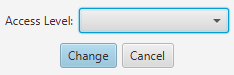
To change the access level of a certain employee, choose the employee from the table in the main view, and click on Change Access Level. Upon reaching the above dialog box, select their new access level and click Change.
Change Overrides
This doesn't work. Whoops.
Reset Password
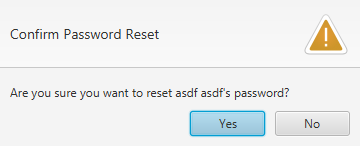
If an employees password needs to be reset, select the employee from the table in the main view, and click on Reset Password. Confirm the action, and their password will be reverted to their default password, as detailed in the Adding Employees section above.