Sell Inventory
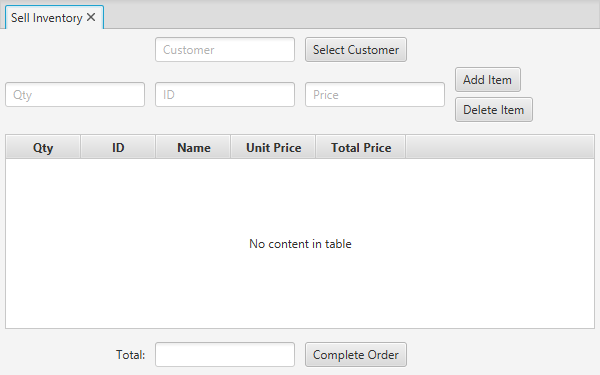
The Sell Inventory view will allow the sale of existing inventory.
Customer Selection
To start an invoice, start by selecting a customer. Click the Select Customer button to open the view to do this.
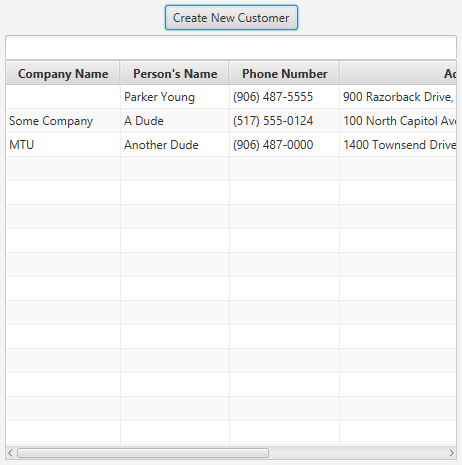
A list of customers currently stored in the database is displayed. If the customer being sold to is in this list, double-clicking on their line in the table will result in the customer being selected and the Customer Selection view being closed. The customer's name will be displayed in the text field next to the Select Customer button on the Sell Inventory tab.
The text field above the table in this view is a search bar to help look for the customer being sold to. As of right now, the bar supports searching based on Company Name, Person's Name, and Phone Number.
Create New Customer
In the event that the customer being sold to isn't already in the database, clicking on the Create New Customer button within the Customer Selection sub-view will open will open a forum that will allow the creation of a new customer.
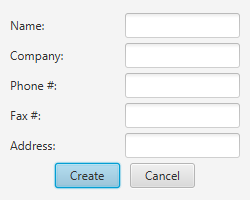
This forum supports creating a customer with the following information:
- Name: The customer's name. Required
- Company: The company that the customer represents.
- Phone Number: The phone number for the customer.
- Fax Number: The fax number for the customer.
- Address: The address for the customer.
After filling in the information, clicking Create will create the customer in the database and automatically fill in that customer in the Sell Inventory view. This will also close the Create Customer and Select Customer sub-views automatically.
Adding Products
To add products to the invoice, the following information is supported:
- Quantity: The number of items of this specific product that the customer is ordering. Required
- Product ID: The unique ID for the product that is being sold. Required
- Unit Price: A manual override of the unit-price for an item. Allows for one-time discounts to be applied on a per-item basis.
When the information has been supplied, clicking Add Item or pressing enter will add the item to the order, so long as the information provided is valid. The program will automatically calculate the total price for each line item, and keep a running total at the bottom of the view.
Removing Products
To remove a line item from the invoice, click on it in the Table, then click the Delete Item button, right below the Add Item button.
Completing the Invoice
Once the order is complete, clicking on Complete Order will create an invoice that will be stored in the database, and the on-hand quantity will be detracted.
NOTE: As of right now, it is not possible to view the completed invoices. This will be implemented in a later version.